Rethinking the Email Signature in a Digital-First World
Email remains one of the most powerful communication tools in professional life. Whether you’re negotiating partnerships, sending proposals, or nurturing leads, your email signature quietly represents your brand at the end of every message. Yet most professionals still treat it as an afterthought, limited to a name, job title, and phone number.
In 2026, that’s no longer enough.
A Digital business card transforms your email signature into a dynamic networking gateway. Instead of static text, you provide a living, interactive profile that allows recipients to save your contact instantly, explore your portfolio, book meetings, or connect on multiple platforms, all in one tap or click.
This is where UINQO redefines professional communication. With its Smart NFC cards, Dynamic QR code, personalized landing pages, and integrated contact management system, UINQO makes it possible to embed your complete digital identity directly into your email signature.
Why a Digital Business Card Belongs in Your Signature
Every email you send is a networking opportunity. When your digital card is embedded in your signature, you eliminate friction from the connection process. Recipients don’t have to manually copy your phone number or search for your LinkedIn profile. Instead, they access a centralized, branded page that contains everything they need.
Unlike static details, a UINQO digital business card updates in real time. If your role changes, your phone number updates, or you launch a new product, your link remains the same while the information behind it evolves. This eliminates outdated signatures floating around in old email threads.
More importantly, it positions you as forward-thinking. In industries where innovation matters, subtle technological upgrades signal credibility.
Step 1: Create Your UINQO Digital Business Card
Before integrating anything into your email signature, you need a complete digital profile. UINQO provides a personalized landing page that acts as the core of your digital identity. This page can include your professional details, company information, social media profiles, portfolio links, and custom branding elements.
What makes UINQO technically robust is its ability to unify multiple networking tools into a single structured interface. Smart contact categories allow you to segment connections. Multiple profile options enable different versions of your card for different audiences. Creative customization with the Dimension Card ensures your visual branding remains consistent.
Once your profile is complete, UINQO generates a shareable link and dynamic QR code connected to your digital business card.
Step 2: Decide How You Want It Displayed
There are two common methods for adding your digital business card to your email signature. The first is hyperlinking text such as “View My Digital Business Card.” The second is embedding a clickable image or QR code.
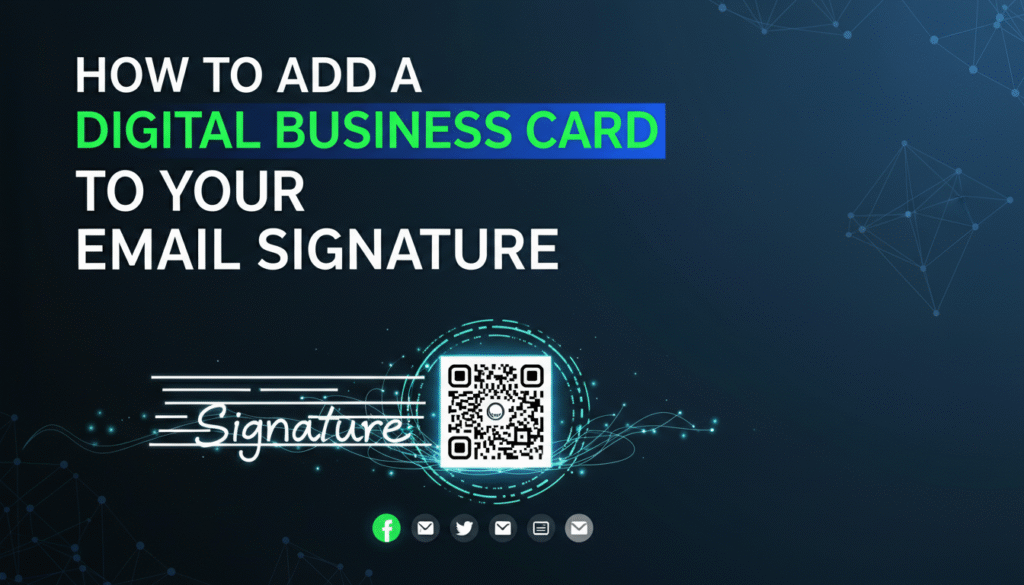
Hyperlinked text is clean and minimal, ideal for corporate environments. A clickable image or branded banner feels more visually engaging and works particularly well in creative industries. If you’re using UINQO’s dynamic QR code, you can insert it as a small, scannable graphic within your signature for instant mobile access.
Both methods direct recipients to your personalized UINQO landing page.
Step 3: Add It to Gmail
In Gmail, navigate to Settings and open the signature editor. Place your cursor where you want the digital card link to appear. Highlight your preferred anchor text and use the insert link function to paste your UINQO card URL. If you prefer a QR code or image, upload it directly into the signature editor and hyperlink the image to your digital card link.
Once saved, every outgoing email will include direct access to your full professional profile.
Step 4: Add It to Outlook
In Outlook, open the signature settings from the Mail section. Edit your existing signature or create a new one. Insert your preferred text or image, then attach your UINQO digital card URL using the hyperlink tool.
Outlook also allows you to format signatures with HTML for more advanced branding. This means you can align your company colors, logo, and UINQO digital access point into one cohesive design.
Step 5: Test Across Devices
A digital business card must function seamlessly on desktop and mobile devices. After updating your signature, send yourself a test email. Open it on different devices to ensure the link loads quickly and the landing page displays correctly.
UINQO’s optimized landing pages are built for cross-device compatibility, ensuring fast performance whether someone clicks from a corporate desktop or scans via smartphone.
The Technical Advantage Behind the Simplicity
Behind the user-friendly experience lies a sophisticated structure. UINQO’s system integrates NFC compatibility, QR accessibility, and centralized contact management into a single ecosystem. When someone accesses your card, their interaction can feed into your contact management system, helping you organize and categorize new connections.
Unlike traditional signatures, which are static and untraceable, digital cards can offer insights into engagement patterns. While respecting privacy standards, this level of visibility helps professionals refine follow-up strategies.
Turning Every Email into a Networking Opportunity
Embedding a digital business card into your email signature is not just a cosmetic upgrade. It’s a strategic enhancement of your communication infrastructure.
With UINQO, your email signature becomes more than a sign-off. It becomes a gateway, simplifying communication and amplifying connections exactly as the brand promises.